How to Convert a PDF Page to an Image (PNG or JPG)
Need a single page of a PDF as a picture — for a slide, a thumbnail, a chat, or a website? Converting a PDF page to an image (PNG or JPG) is the easiest way. You pick the page and the resolution, then download a ready-to-use image.
Turn a PDF page into a crisp image — free and online.
Open the PDF → PNG toolPNG or JPG for a PDF page?
- PNG is lossless and supports transparency — best for pages with text, diagrams, and sharp lines.
- JPG is smaller — best for scanned or photo-heavy pages where a white background is fine.
Toolsina offers both: PDF to PNG and PDF to JPG (plus GIF and WebP).
How to convert a PDF page to an image
- Open the tool. Choose PDF to PNG or PDF to JPG.
- Upload your PDF.
- Pick the page number and resolution (higher = sharper and larger).
- Download the image.
Tips
- Increase the resolution for printing or zooming; keep it lower for web thumbnails to save size.
- One page per run — change the page number to export another page.
- Want a smaller file afterward? Run the image through compress to target size.
Frequently asked questions
Does it work with multi-page PDFs?
Yes — you choose which page to convert, and can run it again for each page you need.
Is my PDF kept private?
Your file is used only to render the page you requested and is not shared.
Get your PDF page as an image now.
Convert PDF to imageSee it in action, step by step
1Open the tool and upload your file
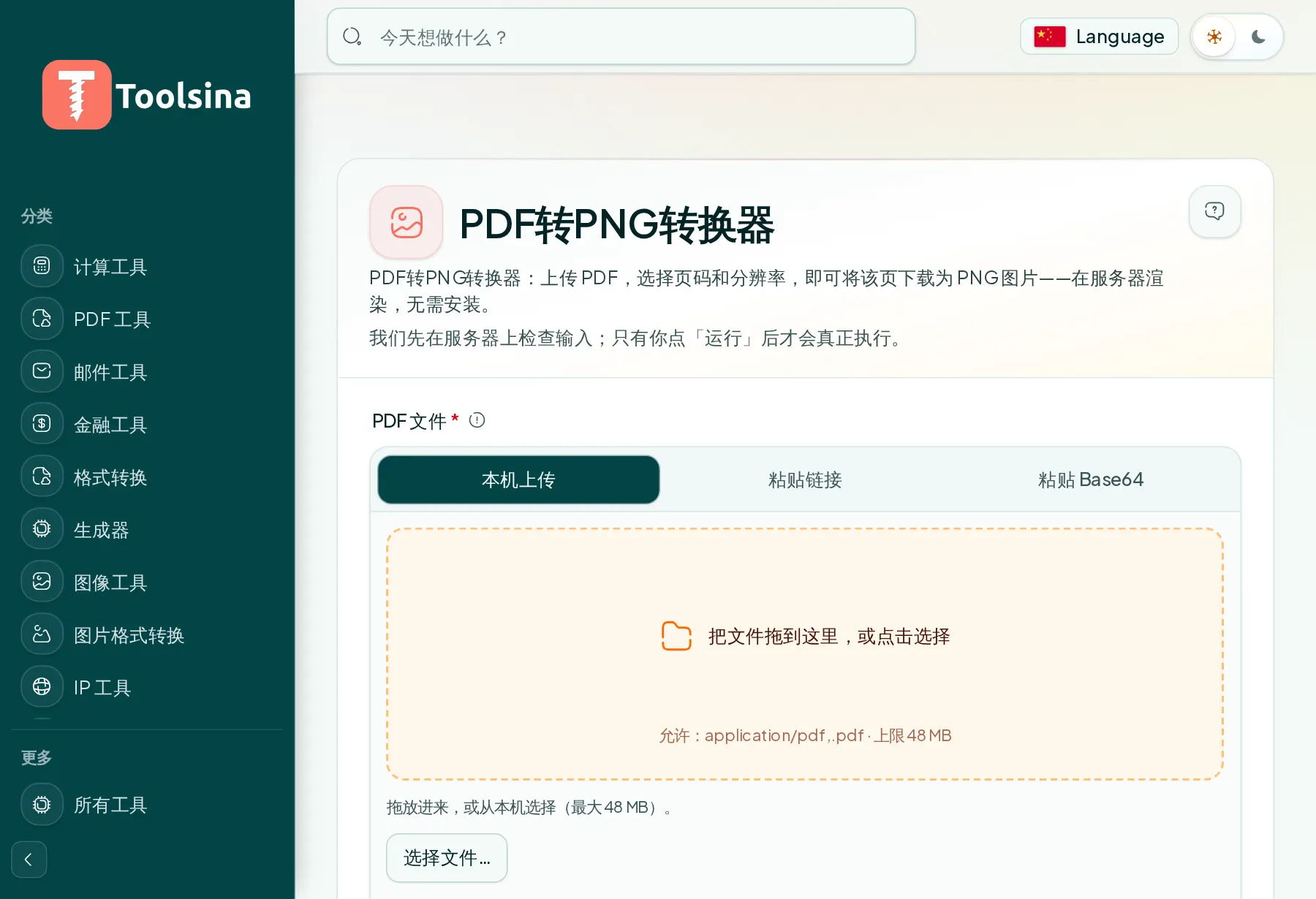
2Check your file and adjust the options
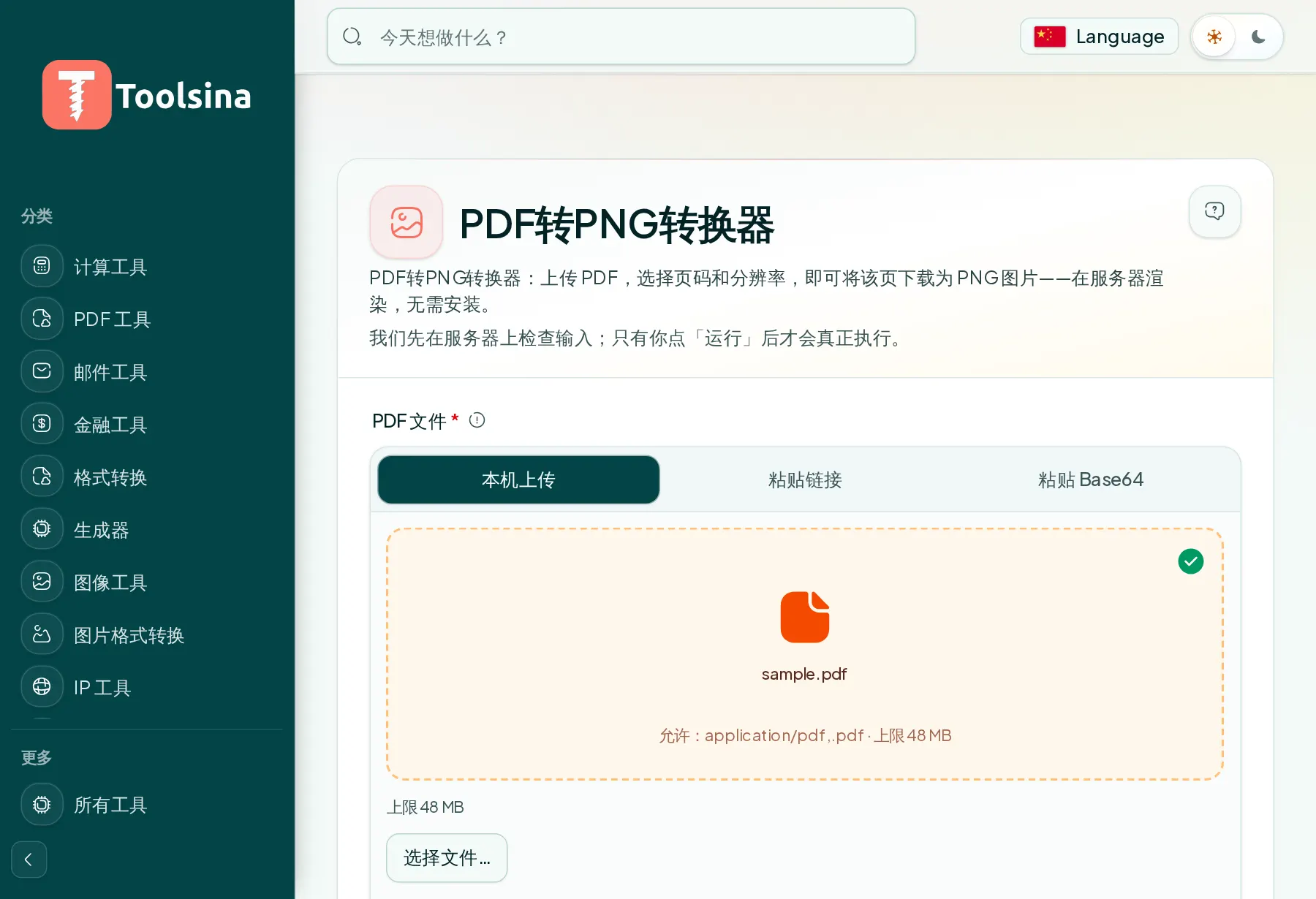
3Run it, then download your result