How to Convert PNG to JPG (Free, Online)

PNG and JPG are the two most common image formats on the web, but they're built for different jobs. PNG is lossless and supports transparency, which makes files larger. JPG (JPEG) uses smart lossy compression that shrinks photos dramatically. Converting a PNG to JPG is the fastest way to make an image smaller for email, websites, and uploads.
Convert a PNG to JPG right now — free, in your browser, no signup.
Open the PNG → JPG toolWhen should you convert PNG to JPG?
- Smaller files: a photo saved as PNG can be 5–10× larger than the same photo as JPG.
- Faster websites: lighter images load quicker and improve Core Web Vitals.
- Email & upload limits: JPG helps you stay under attachment size caps.
- Universal support: every device, printer, and app opens JPG.
Keep the PNG when you need transparency (logos, icons) or pixel-perfect graphics with text and sharp edges.
How to convert PNG to JPG in 3 steps
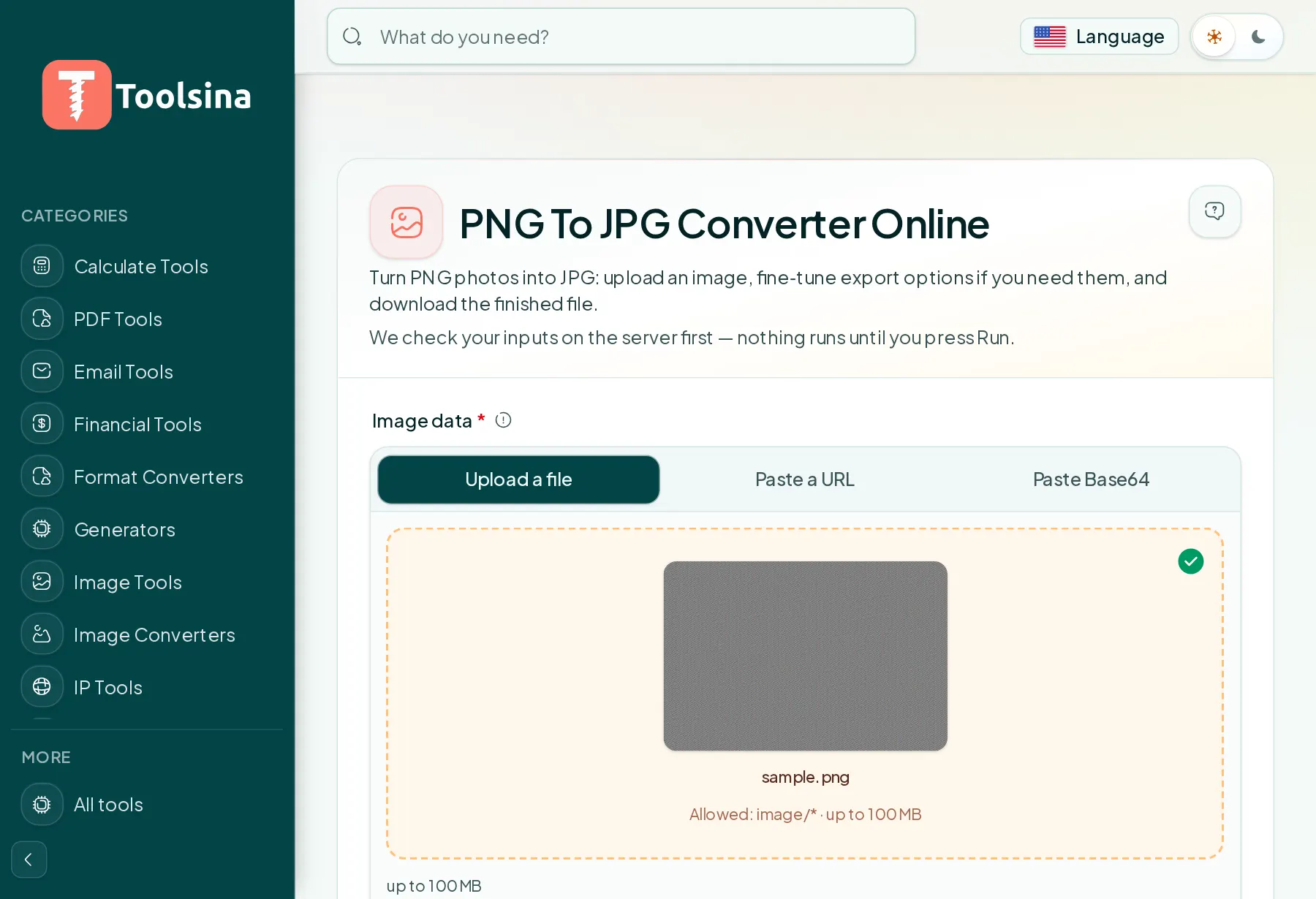
- Open the tool. Go to the PNG to JPG converter.
- Upload your PNG. Drag and drop the file or click to choose it — nothing to install.
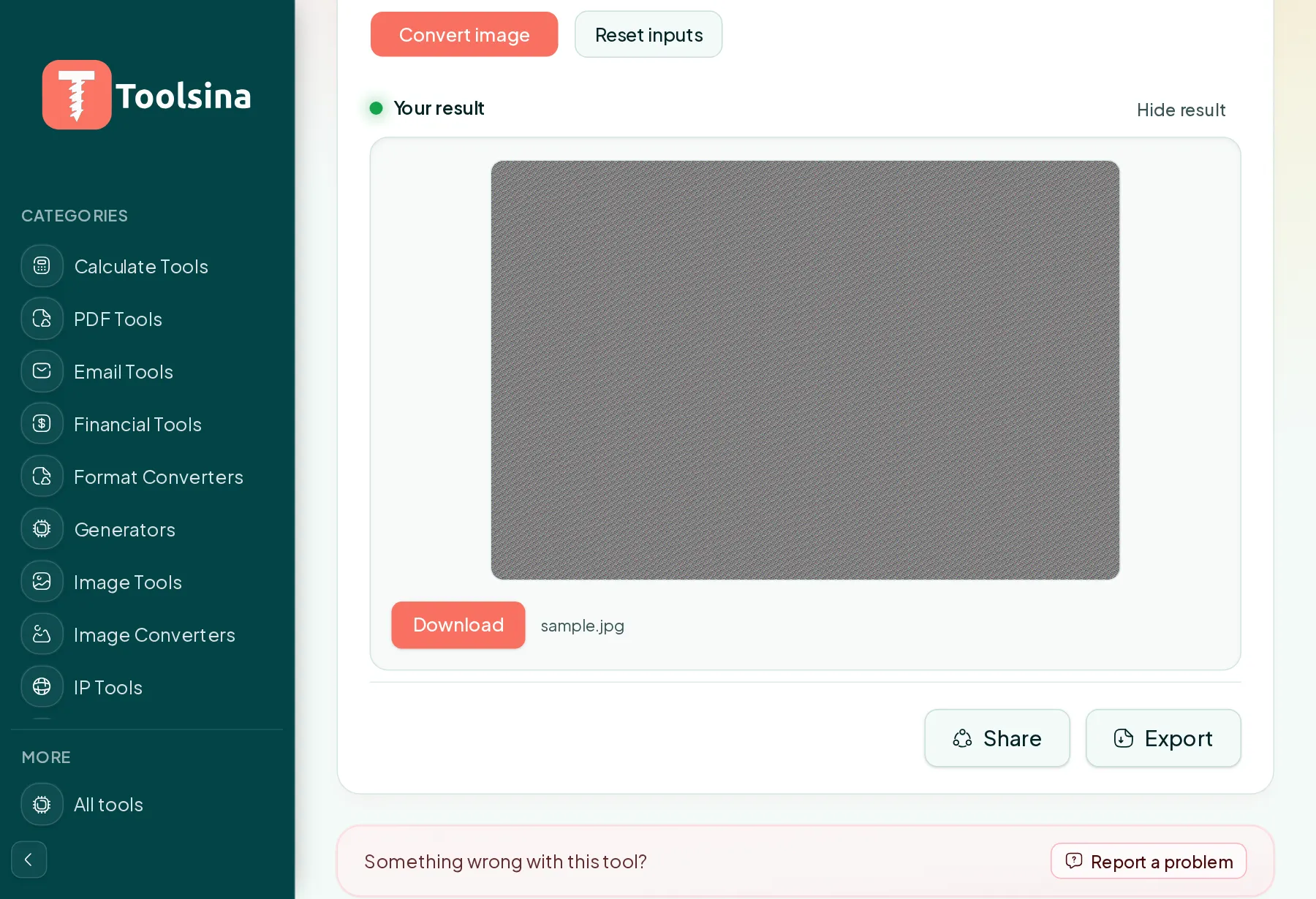
- Download the JPG. The converted image appears instantly; click download to save it.
Tips for the best results
- Transparency turns solid. JPG has no transparency, so transparent areas become a solid background (usually white).
- Don't re-convert repeatedly. Each JPG save loses a little quality — convert once from the original.
- Need an exact size? After converting, use our compress image to target size tool to hit a precise KB limit.
Frequently asked questions
Will converting to JPG reduce quality?
JPG is lossy, so there's some compression, but at high quality the difference is invisible for most photos while the file gets much smaller.
Is it free and private?
Yes. The converter is completely free, and your file is used only for the conversion.
Ready to convert? It takes about five seconds.
Convert PNG to JPG nowSee it in action, step by step
1Open the tool and upload your file
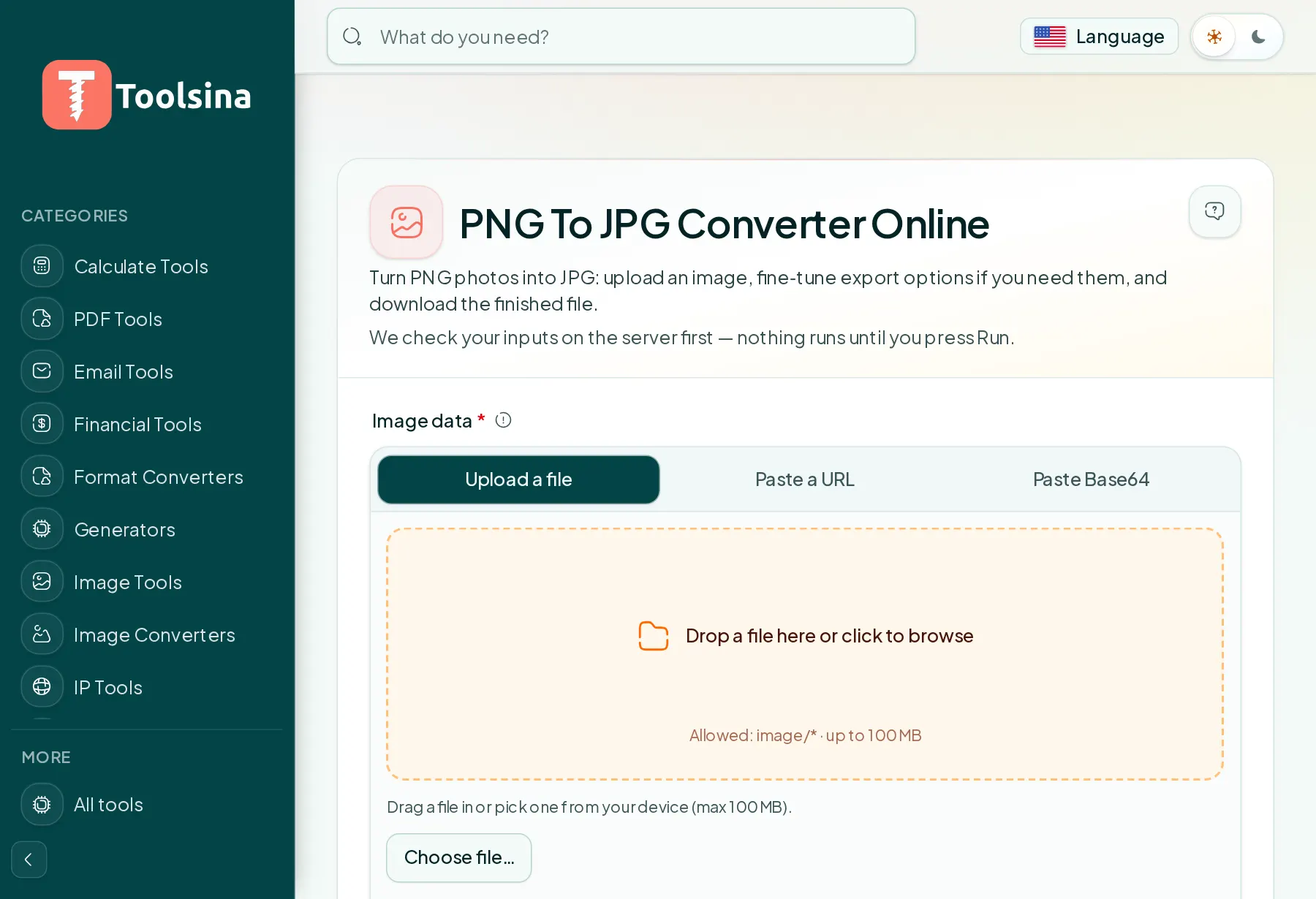
2Check your file and adjust the options
3Run it, then download your result