How to Resize an Image (Free, Online)
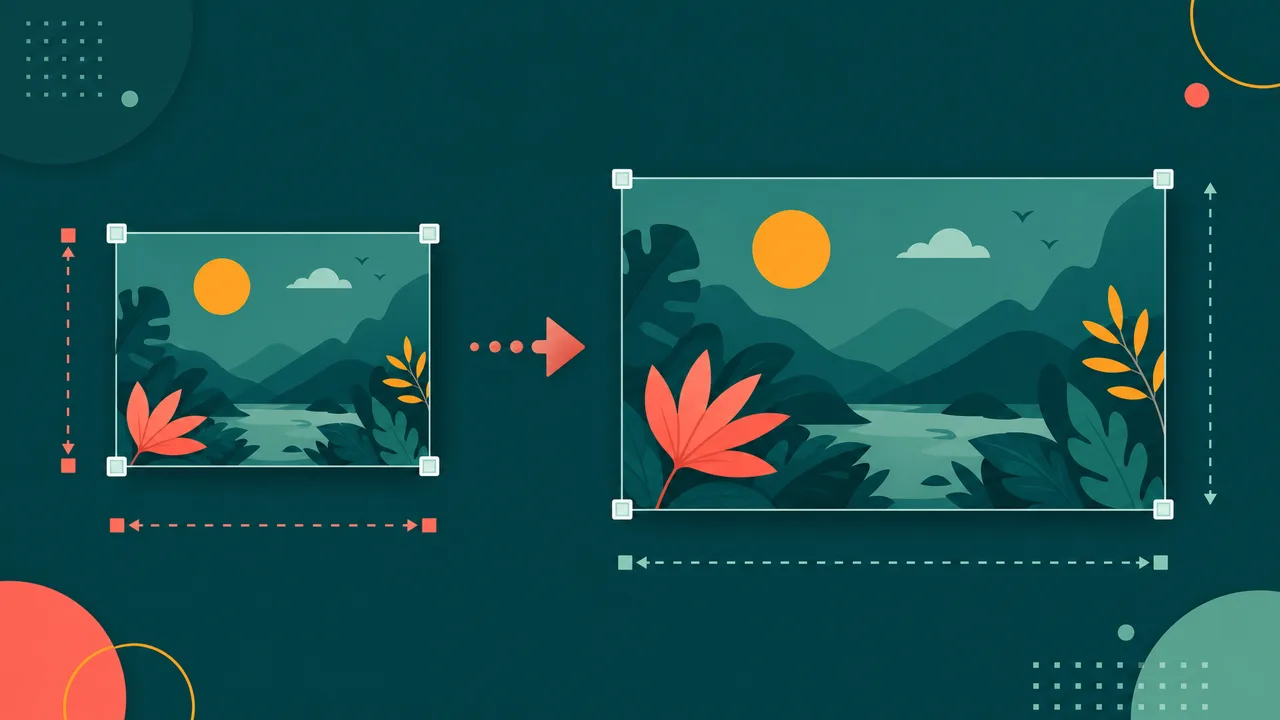
Whether you need a profile picture, a thumbnail, or an image that fits an upload requirement, resizing gets your picture to the exact dimensions you need — without stretching or distortion.
Resize an image right now — free and online.
Open the image resizerWhen should you resize an image?
- Meet size requirements: profiles, forms, and marketplaces often ask for specific pixel dimensions.
- Faster loading: serving an image at its display size avoids wasting bandwidth.
- Consistent layouts: matching dimensions keep galleries and grids tidy.
How to resize an image in 3 steps
- Open the tool. Go to the image resizer.
- Upload your image and set the width and height you need.
- Download the resized image.
Tips
- Keep the aspect ratio to avoid stretching; crop first if you need a different shape.
- Don't upscale too much — enlarging a small image can look soft.
- Need a smaller file too? Follow up with compress to target size.
Frequently asked questions
Will resizing reduce quality?
Making an image smaller keeps it crisp; enlarging beyond the original size can reduce sharpness.
Is it free and private?
Yes. It's free, and your image is used only to resize it.
Resize your image now.
Resize an imageSee it in action, step by step
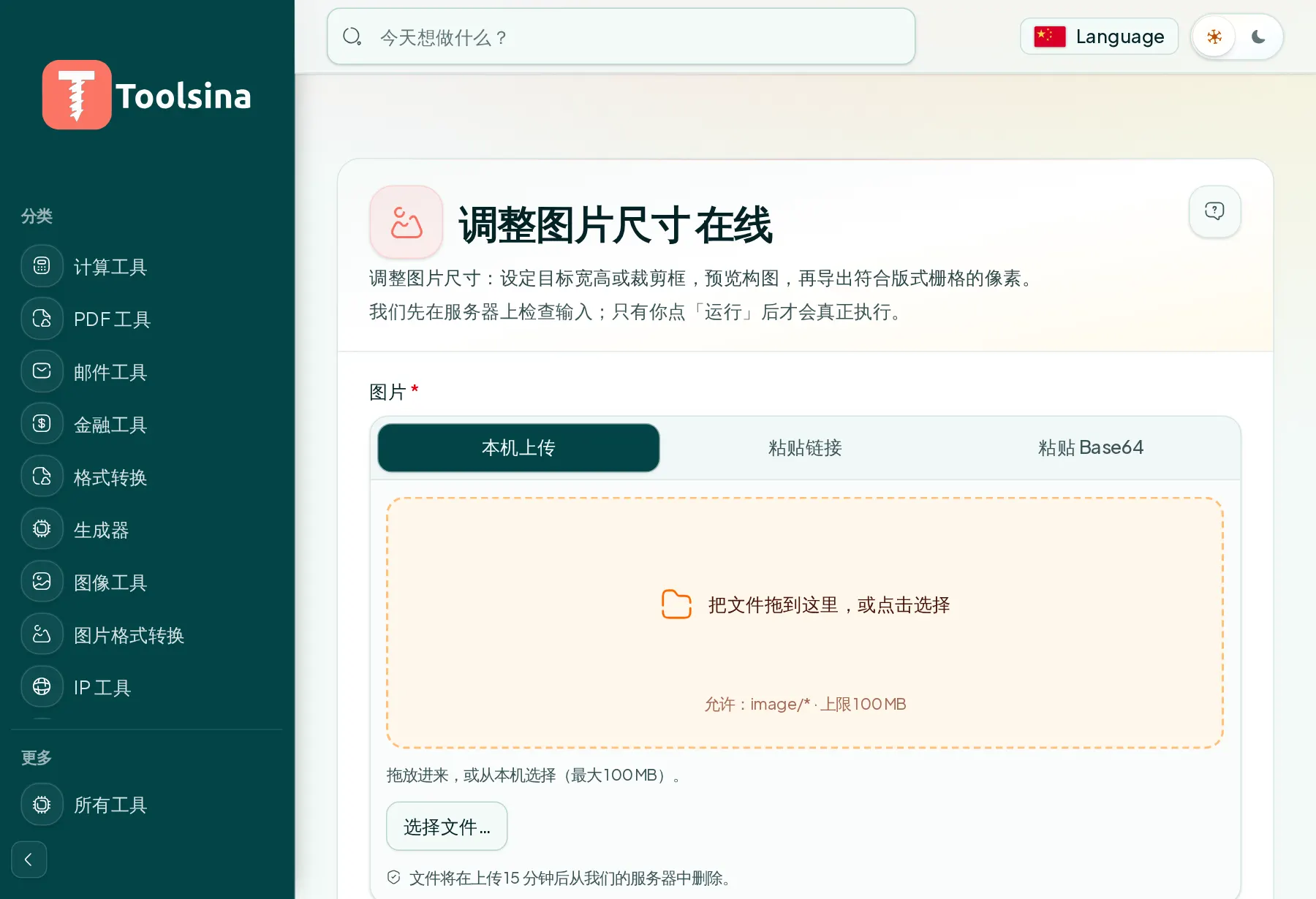
1Open the tool and upload your file
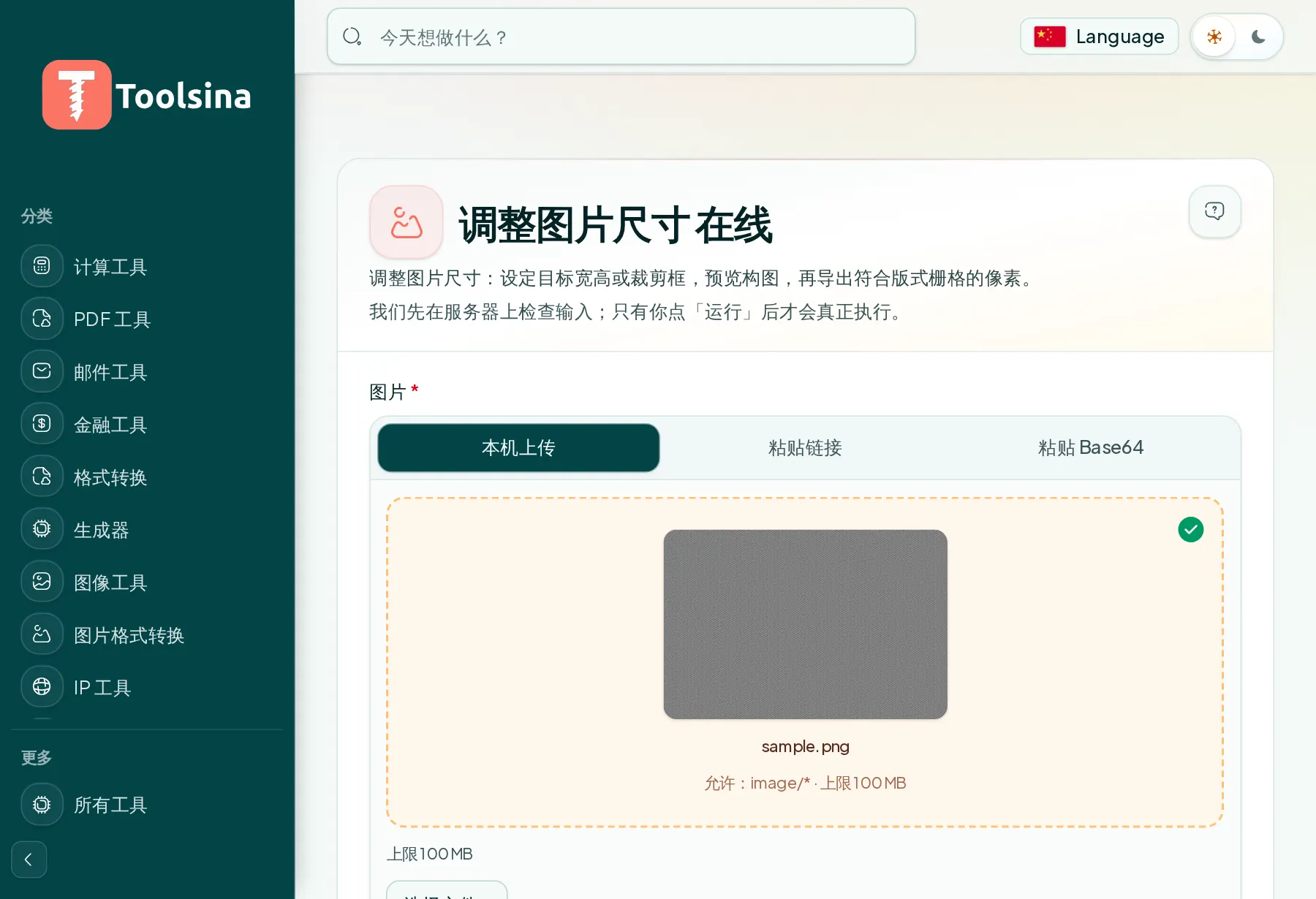
2Check your file and adjust the options
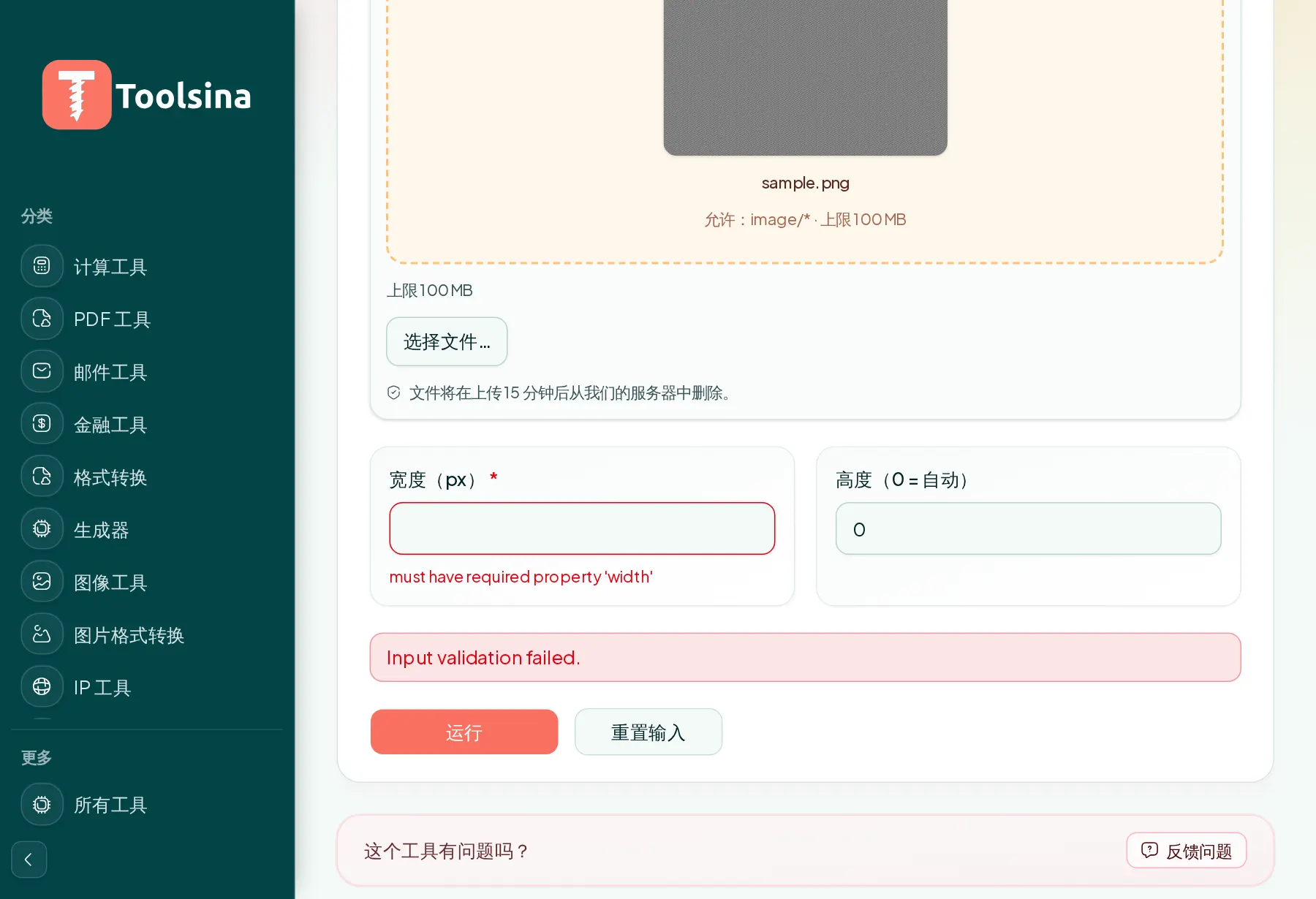
3Run it, then download your result